The TikTok Live Manager login starts at TikTok Shop for Creators on a desktop. Sign in with a seller or affiliate creator account that has e-commerce permission, then select Live Manager. It is the desktop control room for TikTok Shop LIVE: you can schedule streams, load product sets, moderate chat, connect OBS or a mobile stream, and watch live analytics. Access and features vary by account, market, and role, so a personal account without Shop access may see a no-access screen. The pre-stream checklist is the same for sellers and affiliates: products loaded, moderation rules set, and a backup network ready.
What Is TikTok LIVE Manager and How Do You Use It?
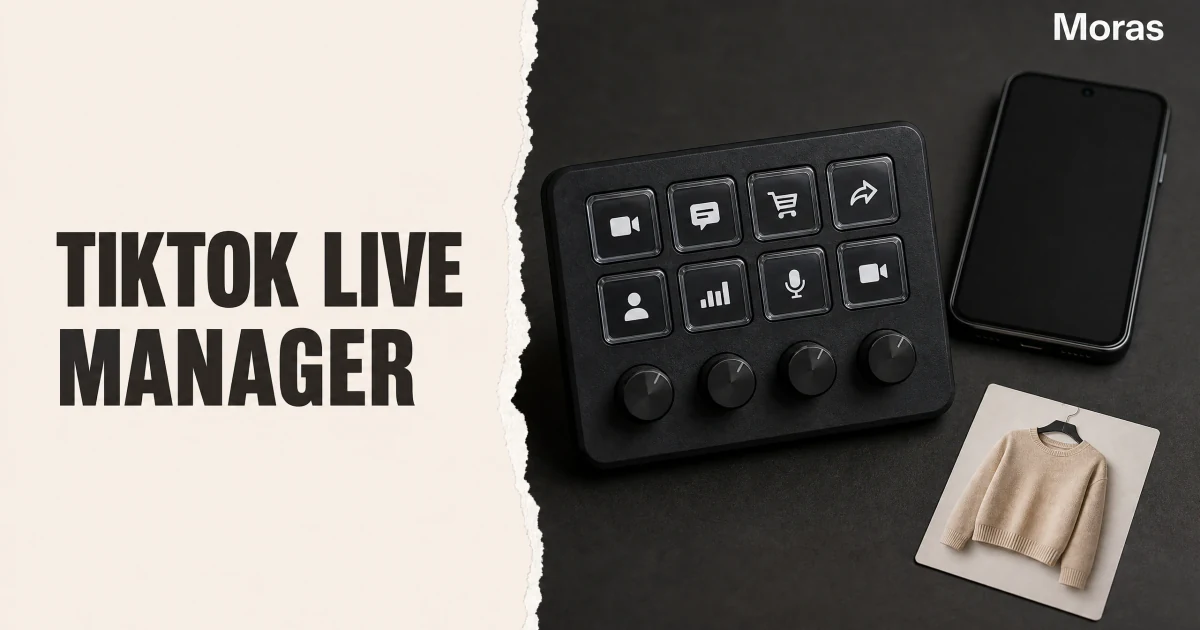
TikTok Live Manager is a desktop-based product tool for hosts — seller official accounts, seller marketing accounts, and affiliate creators — to plan and manage live shopping streams without depending on a mobile device. Where the TikTok app is built for going live from your pocket, Live Manager is built for control: you can schedule an event, prepare product sets in advance, switch camera and audio sources, pin comments, moderate chat, and watch engagement metrics change in real time.
The most useful way to understand it is as the command center layer on top of the TikTok Shop live experience. The actual broadcast can run from your desktop or your phone, but the orchestration — what products are in the stream, who is moderating, what the analytics say — happens in Live Manager.
One detail separates it from a generic streaming tool: it is deeply tied to TikTok Shop commerce. You are not just broadcasting. you are managing product placements, giveaways, and sales analytics in the same interface. That is why hosts who do live shopping treat it as the default workspace, while hosts who stream for entertainment only rarely need it.
Live Manager vs LIVE Center vs TikTok Shop Live
TikTok uses three live-related names that are easy to confuse, and each one does something different. Sorting them out upfront saves a lot of dead-end navigation.
| Tool | What it is | Who uses it | Best for |
|---|---|---|---|
| TikTok Live Manager | Desktop console for planning & managing live shopping streams | Sellers & affiliate creators | Scheduling, product management, OBS, moderation |
| LIVE Center | In-app analytics & training hub | Any creator | Post-stream performance, LIVE Academy |
| TikTok Shop Live | The commerce live format inside TikTok Shop | Shoppers & hosts | Selling products during a stream |
The boundary that trips most people up is between Live Manager and LIVE Center. Live Manager is where you run the stream. LIVE Center is where you study it afterward. You will use both, but at different times — Live Manager during the broadcast and for setup, LIVE Center to review viewer counts, gift activity, and long-term patterns after you wrap up.
A useful mental shortcut: if you are about to broadcast, open Live Manager. If you are reviewing what happened, open LIVE Center. Live Manager handles the stream. LIVE Center helps you study it afterward.
TikTok LIVE Manager Login and Access
Getting into Live Manager takes one login, and there are two official doors depending on whether you start from the creator portal or the streamer welcome page.
The most common path is the TikTok Shop for Creators dashboard:
- Open the official TikTok Shop for Creators dashboard and log in with your TikTok Shop account.
- Click Live Manager in the dashboard navigation.
- Accept the terms if this is your first visit, and the Live Console opens.
The second path goes through the streamer welcome page: open the Streamer welcome page, log in with a TikTok account that has e-commerce permission (sellers and creators both qualify), and you land in the same console. If you ever get a "no access" screen, the cause is almost always that the account does not have e-commerce permission enabled — a seller or creator account on the same TikTok Shop market is the fix.
You can also reach Live Manager from TikTok.com by heading to Creator Tools and selecting Live Shopping, which is handy when you are already working in a browser.
Requirements and Limits Worth Knowing
Live Manager is not a separate product you subscribe to — it is part of the TikTok Shop toolset, and access follows a few rules. These are the ones that come up most often when something does not work as expected.
| Item | What to know |
|---|---|
| Account | You need a TikTok Shop seller account or an affiliate creator account with e-commerce permission. A personal TikTok account without Shop access reaches a "no access" screen. |
| Device | The console is built for a desktop browser. Your phone is still useful for broadcasting and for Manage Live actions while a desktop stream runs. |
| OBS support | OBS Virtual Camera works as a video source, but OBS is third-party software — TikTok does not provide support for OBS-specific problems. |
| Agency access | Agencies can manage Live Manager on a creator's behalf through an access program that is in beta and limited to allowlisted partners. The creator approves the request, and access ends when the link ends. |
| One broadcast | An account cannot run two live streams at once. Starting on the phone while a desktop stream is live triggers a warning and blocks the second broadcast. |
The Live Console, Explained
Once you are inside Live Manager, the main workspace is the Live Console — a desktop layout built for live operations. It is organized around a few panels that map directly to what a host does during a broadcast.
| Console panel | What you control |
|---|---|
| Center stage | Live preview, camera and audio sources, scene switching |
| Product panel | Pin, add, delete, and reorder products mid-stream |
| Comment feed | Moderate chat, pin a viewer comment, manage moderators |
| Giveaway panel | Create and publish giveaways during the stream |
| Analytics tab | Live metrics: viewers, GMV, tap-through rate |
| Suggestions tab | Real-time optimization alerts (e.g., traffic drops) |
The design intent is to reduce phone-in-hand fiddling. On a phone, every action means switching screens. in the console, product management and comment moderation sit side by side. Hosts who prepare a Live Product Set before the event — a saved list of the products they plan to show — can add the whole set with one click instead of searching for each item while live.
There is also a Practice Mode inside the Live Console, which lets you rehearse the layout and product flow before going public. It is worth using for your first session, because the difference between fumbling and smooth on live is visible to every viewer.
Setting up Products and Affiliate Links
For a live shopping stream to make money, products need to be visible, shoppable, and attached to the right account. How you attach them depends on your role, and this is where sellers and affiliate creators diverge.
Sellers add products directly from their own catalog through the Live Product Set in the console. Affiliate creators, by contrast, pull products from the affiliate marketplace — they do not have a catalog, they have a commission-based selection. In Live Manager, a creator adds products to the stream from the products available to their affiliate account, and each product carries its commission rate.
Whichever role you hold, the setup flow is the same shape:
- Open Live Product Set in Live Manager before the event.
- Add the products you plan to feature — sellers from catalog, creators from affiliate selection.
- Arrange the order you will present them, with the strongest offer not necessarily first.
- During the stream, use the product panel to pin the current product and swap to the next.
The order you set matters more than most hosts assume. Pinning one product at a time focuses attention, and pinning too many products in a short window fragments it. If you are new to the monetization side and want to compare affiliate commissions against other paths, our guide to the TikTok Shop setup process walks through the seller-versus-affiliate decision.
Moderators and Assistants
Live Manager's moderation setup is one of its quieter advantages: you do not have to juggle chat and products alone. Hosts can add moderators — separate accounts in the same country — who can help manage the live room.
The two ways to add a moderator are:
- Add a friend: the host and the user must follow each other, which TikTok treats as a friend relationship.
- Add a live viewer: during the stream, the host can directly appoint a viewer as a seat moderator.
Moderators get their own permission controls, and they can help with product tasks inside the live room — opening the shopping bag, adding, pinning, reordering, or deleting products. One limitation to know: a moderator cannot add products from an affiliate selection, so creators should handle commission-product changes themselves or assign only the moderation of comments to the assistant.
TikTok supports up to 200 moderators, though most hosts use one or two. Both the host and moderator accounts need a recent TikTok app version and the same region setting. If a moderator appointment is not working, those two conditions are the first things to check.
Going Live with OBS or Mobile
You can start a stream from Live Manager either immediately or from a scheduled event, and you are not locked into your phone's camera. The console lets you select camera and audio sources, including an OBS Virtual Camera, which is the path most semi-professional hosts take.
Starting an immediate stream: click Go LIVE in the Live Console, pick your camera and audio source, and the broadcast begins from your desktop. Starting a scheduled event: open the event in the Live Events tab and click Go LIVE or View console for that event, then launch from the same source selector.
A few practical notes from how hosts actually run this:
- OBS Virtual Camera becomes the default video source when OBS is detected running, so opening OBS first makes the connection automatic.
- Once live, you can manage the stream from your phone via Manage Live in the app — useful for pinning a product while away from the desk.
- Starting Go Live on a phone while a desktop stream is running triggers a warning, because you cannot run two broadcasts from one account.
- A script can be loaded into the console to guide the flow. it is a helper, not a requirement.
For hosts focused on hooks and presentation, the desktop setup does not change what makes a live stream perform — it changes how cleanly you can execute it. If hooks are the weak spot in your streams, the TikTok Shop hook framework applies to live intros as much as to short videos.
Measuring Performance After a Stream
When the broadcast ends, the work shifts from Live Manager to analytics. Live Manager's Analytics tab gives you real-time numbers during the event — viewers, GMV, and tap-through rate — and its Suggestions tab flags issues like traffic drops with recommended actions.
For the deeper review, TikTok consolidates the post-stream picture in Data Compass → Livestream Analytics (or, for creators, in the LIVE Center). There you open the recap of the session and find the metrics that matter for the next broadcast:
| Metric | What it tells you |
|---|---|
| Viewers & watch time | How well the intro held attention |
| Tap-through rate | How effective product showcases were |
| GMV / sales | What actually converted |
| Gifts & engagement | Community response beyond purchases |
| Drop-off points | Where viewers left mid-stream |
The hosts who improve fastest are the ones who treat every stream as a data point rather than a one-off. A recurring pattern — viewers dropping at the same minute, or a product that consistently underperforms in demo — is a signal you can act on before the next session, not a mystery.
Live operations are one layer of the platform workflow in how TikTok Shop works. use the TikTok Shop toolkit to compare the supporting tools.
Conclusion
TikTok Live Manager is the desktop control room for TikTok Shop live shopping, and once you know the difference between it and LIVE Center, the whole live workflow gets clearer. Log in through the creator dashboard, prepare a Live Product Set, use the console to pin products and moderate chat during the stream, bring in an OBS camera for better production, and close each session with the analytics review in Data Compass.
The tool does not make a weak live stream good, but it removes most of the friction that makes a good one messy. Product management in one panel, comments in another, giveaways a click away, and a Practice Mode to rehearse it all — that is the difference between hosting and wrangling.
The console handles the live stream. It does not fill it. Run the video batch before the stream, not during it — batch the shoppable videos for the Live Product Set, then let Live Manager do what it is good at.